Ollama VRAM Requirements: Complete 2026 Guide to GPU Memory for Local LLMs
You've downloaded Ollama. You're ready to run powerful AI models locally, complete privacy, zero API costs, full control. But then reality hits: your GPU chokes, generation crawls at a few tokens per second, struggling with low context window, or worse, the model won't load at all. The culprit? VRAM.
Video RAM isn't just another spec on your GPU box, it's the single factor that determines whether you're getting speeds at 40-80 tokens/second or watching your system struggle through every response. Pick the wrong model size, ignore quantization settings, or miscalculate your context window needs, and you'll be stuck with unusable performance or memory crashes.
This guide eliminates the guesswork. We've benchmarked some model configurations on real hardware, measuring exact VRAM consumption across different context lengths, and offloading scenarios. You'll learn precisely which models your GPU can handle, how to squeeze maximum performance from limited VRAM, when KV cache quantization actually helps, and what to do when your hardware falls short.
Whether you're running a 4GB budget GPU trying to find any model that works smoothly, an 8GB RTX 4060 owner wondering if you can handle 8B models with long contexts, or planning a serious local AI workstation build, this data driven guide gives you the exact numbers, optimization strategies, and real-world benchmarks you need to make informed decisions.
Links to other essential VRAM articles on LocalLLM.in will help you dive deeper into advanced memory strategies.
TL;DR: How Much VRAM Do You Need for Ollama?
Entry-level (3-4GB VRAM): Can run 3-4B parameter models with Q4_K_M quantization at moderate context windows (4k tokens comfortably).
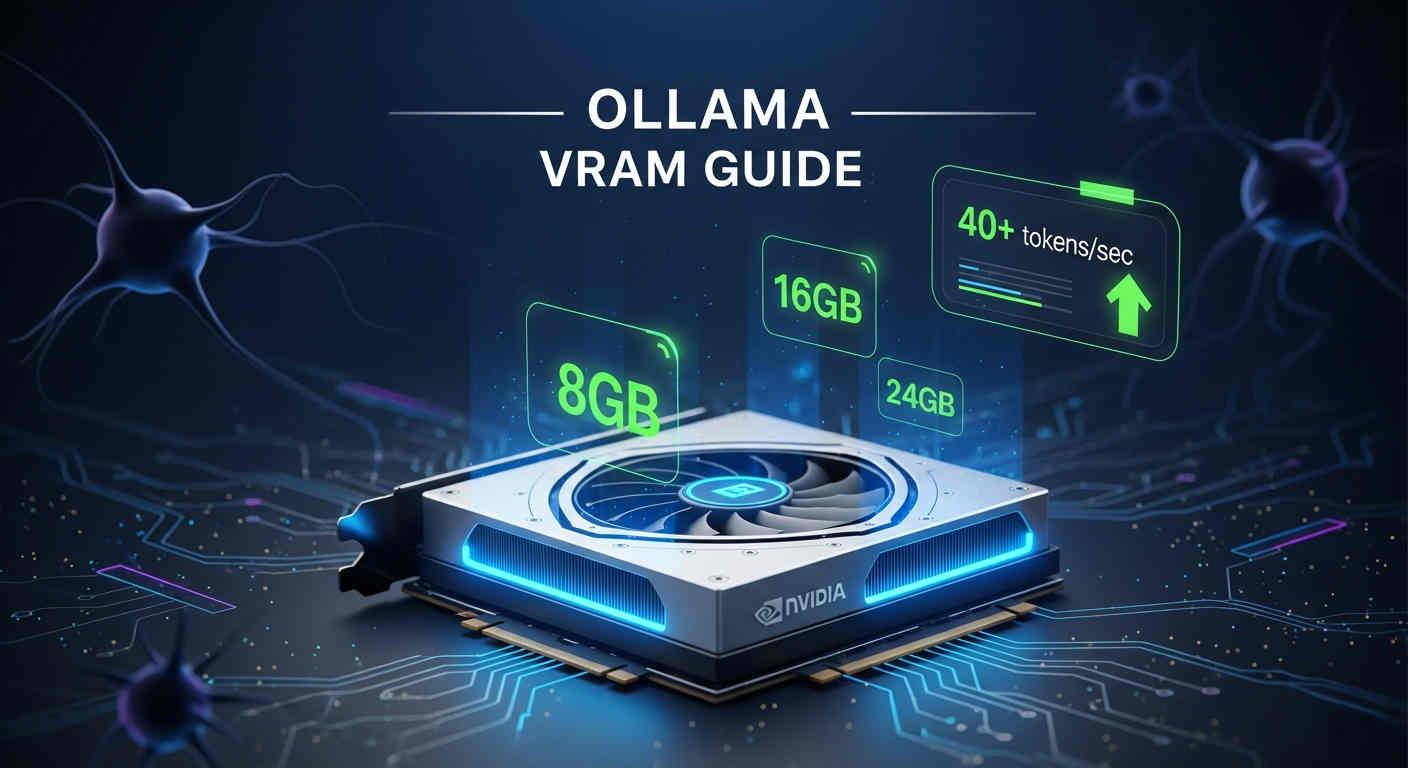
Mid-range (6-8GB VRAM): Supports 7-9B models like Llama 3.1 8B and Qwen3 8B at Q4_K_M quantization. The sweet spot for most users delivering 40+ tokens/second.
High-end (10-12GB VRAM): Ideal for 12-14B models like Gemma 3 12B, Qwen3 14B, Phi-4 14B, and DeepSeek-R1-Distill-Qwen-14B at Q4_K_M quantization with extended context windows for reliable workflows.
High-end (16-24GB VRAM): Supports 22-35B models like Gemma 3 27B, Qwen3 32B, GPT OSS 20b, and Deepseek R1 32b at Q4_K_M quantization.
Workstation (48GB+ VRAM): Required for 70B+ models like Llama 3.3 70B and Qwen2.5 72B at Q4_K_M quantization (or 2×24GB GPUs).
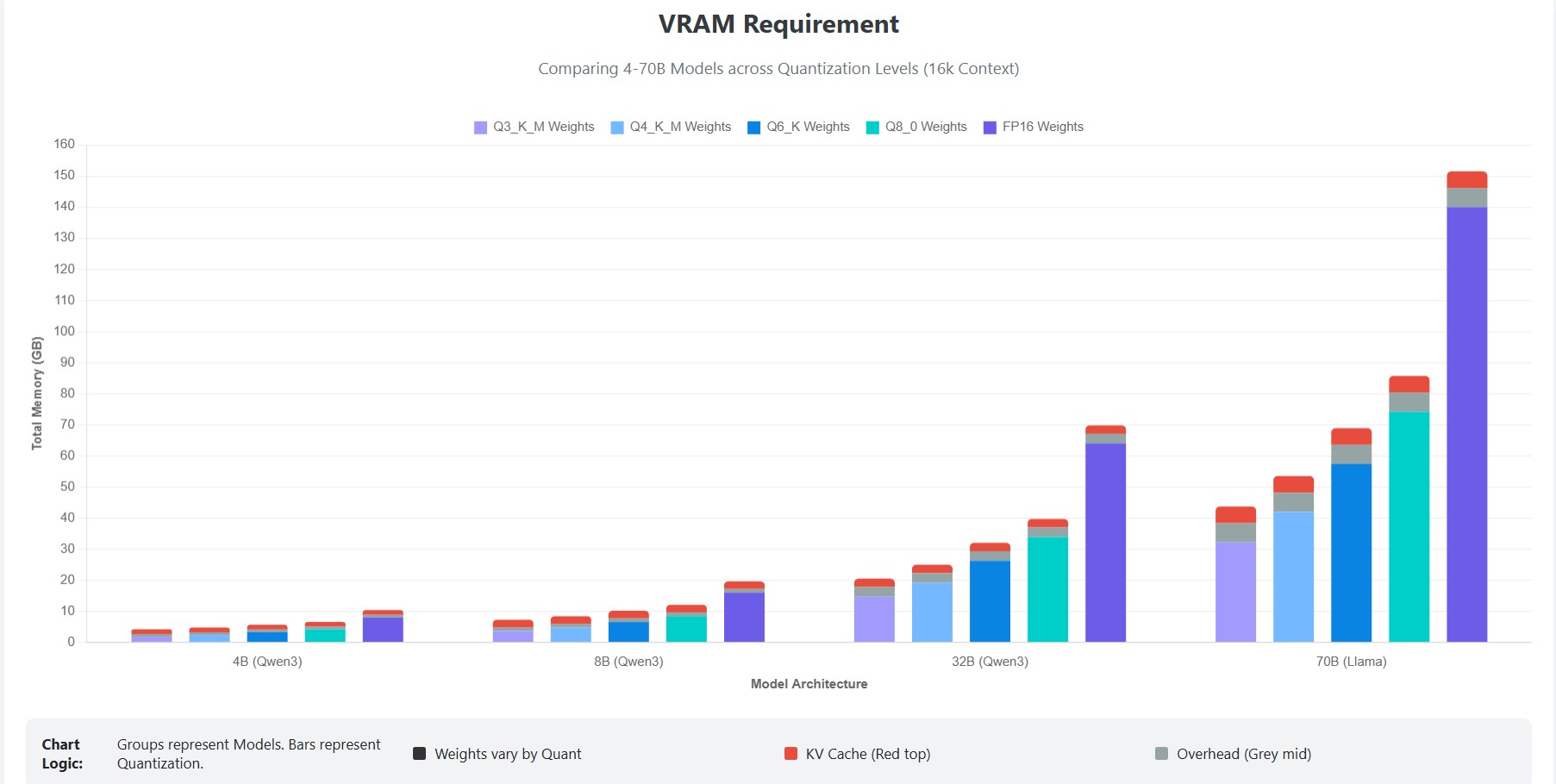
For ultimate precision in planning your Ollama setup, use the interactive VRAM calculator designed specifically for local LLM deployment to estimate your exact memory requirements based on model size, quantization, and context length.
Understanding Ollama's VRAM Architecture
Ollama leverages GPU acceleration through llama.cpp's CUDA and ROCm backends, dynamically managing VRAM allocation and compute resources. Three primary factors determine total VRAM consumption:
Model Weights: Core parameters loaded onto VRAM. Quantization (Q4, Q5, Q6, Q8) dramatically impacts memory usage. Lower bit quantization means smaller VRAM requirements. Q4_K_M represents the memory efficiency gold standard for consumer hardware.
KV Cache: A portion of VRAM is reserved for attention cache. The KV cache grows linearly with context length, making longer contexts increasingly memory intensive. With default FP16 KV cache precision, an 8B model at 32K context requires approximately 4.5 GB for KV cache alone. While quantizing the KV cache (e.g., to INT8 or FP8) can reduce memory requirements by up to 50% or more, it is generally approached with caution, unlike model weights, aggressive quantization of the KV cache, particularly the key vectors can degrade output quality due to the sensitivity of attention mechanisms to quantization errors.
System Overhead: The backend (llama.cpp, CUDA, Vulkan, ROCm) adds roughly 0.5-1GB overhead for model infrastructure, graph allocation, and runtime operations.
Ollama VRAM Requirements: Comprehensive Tables
We benchmarked each of these models using Ollama across multiple quantization levels at an 8k context window to provide precise, real world VRAM requirements based on actual hardware testing. The following tables consolidate data on file sizes and total VRAM requirements for popular models, verified through high-quality GGUF quants from top Hugging Face publishers.
Table 1: Standard Models (3B – 20B)
| Model | Quant | File Size | VRAM (8k Context) | Hub Publisher |
|---|---|---|---|---|
| Llama 3.2 3B | Q4_K_M | 2 GB | 3.58 GB | bartowski |
| Qwen 3 4B | Q4_K_M | 2.5 GB | 4 GB | unsloth |
| Llama 3.1 8B | Q3_K_M | 4.02 GB | 5.8 GB | bartowski |
| Llama 3.1 8B | Q4_K_M | 4.92 GB | 6.2 GB | bartowski |
| Llama 3.1 8B | Q5_K_M | 5.73 GB | 7.3 GB | bartowski |
| Llama 3.1 8B | Q6_K_L | 6.85 GB | 8.2 GB | bartowski |
| Mistral Nemo 12B | Q4_K_M | 7.5 GB | 9 GB | bartowski |
| Gemma 3 12B | Q4_K_M | 7.20 GB | 12.4 GB | bartowski |
| Qwen3 14B | Q3_K_M | 7.32 GB | 9 GB | unsloth |
| Qwen3 14B | Q4_K_M | 9 GB | 10.7 GB | unsloth |
| Qwen3 14B | Q5_K_M | 10.5 GB | 12 GB | unsloth |
| Phi-4 14B | Q4_K_M | 9 GB | 11 GB | bartowski |
| DeepSeek-R1-Distill-Qwen-14B | Q3_K_M | 7.34 GB | 9.5 GB | unsloth |
| DeepSeek-R1-Distill-Qwen-14B | Q4_K_M | 8.95 GB | 11 GB | unsloth |
| DeepSeek-R1-Distill-Qwen-14B | Q5_K_M | 10.5 GB | 12.5 GB | unsloth |
| GPT OSS 20b gguf | Q3_K_M | 11.5 GB | 11.9 GB | unsloth |
| GPT OSS 20b gguf | Q4_K_M | 11.6 GB | 11.95 GB | unsloth |
| GPT OSS 20b gguf | Q5_K_M | 11.7 GB | 12 GB | unsloth |
| GPT OSS 20b gguf | Q6_K | 12 GB | 12.1 GB | unsloth |
| GPT OSS 20b gguf | Q8_0 | 12.1 GB | 12.2 GB | unsloth |
Table 2: High-Performance Models (27B – 32B)
| Model | Quant | File Size | VRAM (8k Context) | Hub Publisher |
|---|---|---|---|---|
| Gemma 3 27B | Q3_K_M | 13.4 GB | 19.4 GB | bartowski |
| Gemma 3 27B | Q4_K_M | 16.5 GB | 22.5 GB | bartowski |
| Qwen 3 32B | Q3_K_M | 16.0 GB | 18.6 GB | bartowski |
| Qwen 3 32B | Q4_K_M | 19.8 GB | 22.2 GB | bartowski |
Table 3: Workstation Models (70B+)
| Model | Quant | File Size | VRAM (8k Context) | Hub Publisher |
|---|---|---|---|---|
| Llama 3.3 70B | Q4_K_M | 42.5 GB | 45.6 GB | bartowski |
| Qwen 2.5 72B | Q4_K_M | 47.4 GB | 50.5 GB | bartowski |
| Llama 3.3 70B | Q3_K_M | 34.3 GB | 37.5 GB | bartowski |
| Qwen 2.5 72B | Q3_K_M | 37.7 GB | 40.9 GB | bartowski |
Note: While these tables cover the most popular models, you can use this data to estimate VRAM requirements for similar-sized models. For example, any 8B model with Q4_K_M quantization will require approximately 6-7 GB VRAM, and any 32B model will need around 22-24 GB. For precise calculations tailored to your specific model, context length, and quantization settings, use our interactive VRAM calculator.
Ollama KV Cache Memory Usage by Context Length
In Ollama, total VRAM usage is the sum of model weights plus the key–value (KV) cache, and the graph above shows that KV cache memory grows almost perfectly linearly with context length for 4B, 8B, and 70B models. Because the KV cache stores key and value vectors for every token, layer, and attention head, the effective Ollama KV cache memory per token scales with both model size and precision, which is why larger models see Ollama KV cache memory usage context length jump from a few hundred megabytes at short contexts to many gigabytes at long contexts, often becoming the dominant contributor to VRAM beyond the base model weights. This is also why Ollama’s docs and community guides emphasize KV cache configuration and quantization as a primary lever for fitting bigger models or longer contexts into fixed GPU VRAM.
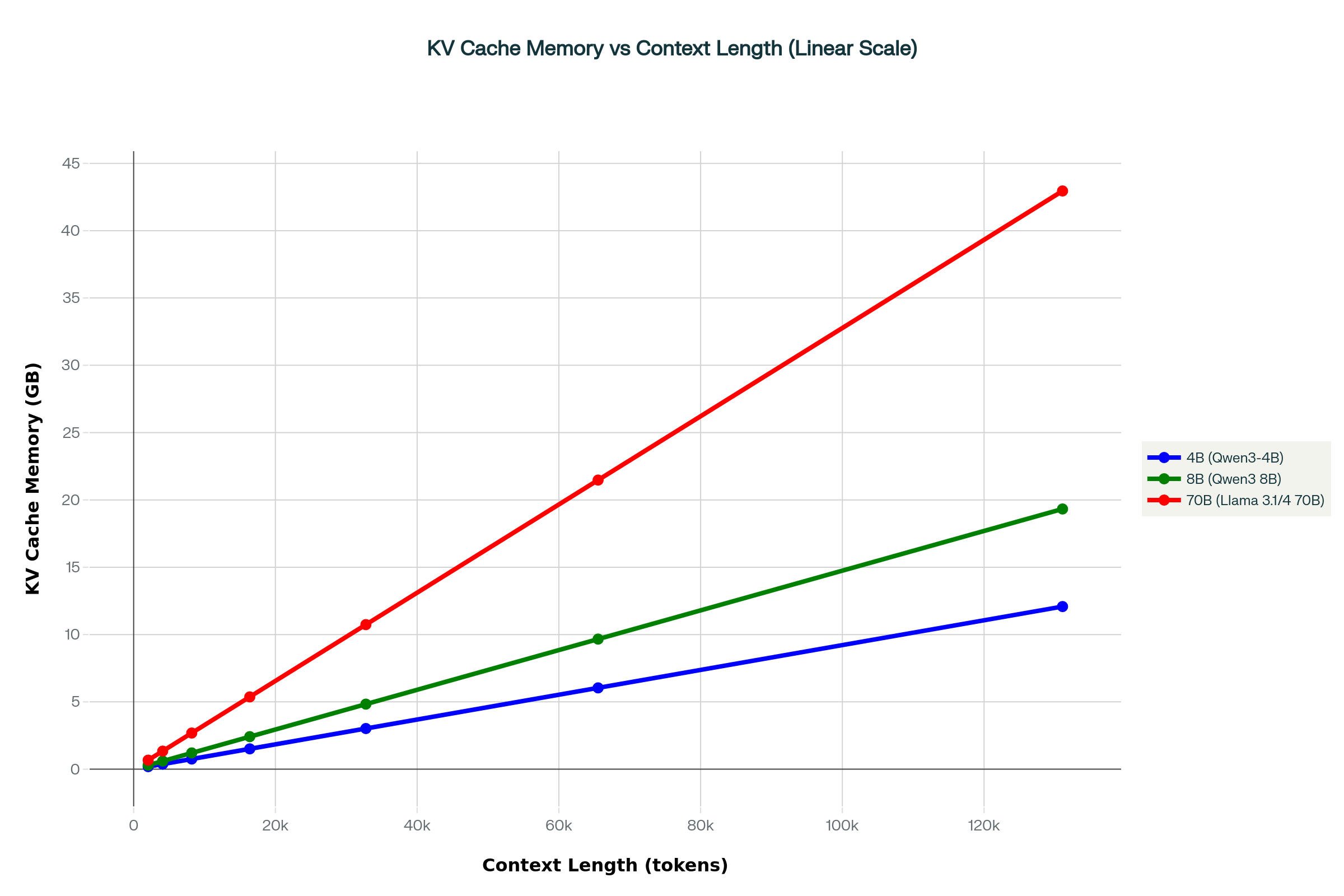
Looking at the numbers from the chart, a 4B model needs roughly 0.2 GB of KV cache at a 2K context, and about 3 GB at 32K, while an 8B model climbs from ~0.3 GB (2K) to ~5 GB (32K) and ~20 GB (128K) of KV cache alone; a 70B model jumps from ~1.6 GB at 2K to well over 42 GB at 128K context. These figures make it easy to approximate Ollama KV cache memory per token for your own setup and to see why long contexts are impossible on smaller GPUs unless you reduce precision, lower context, or tweak the effective Ollama KV cache size environment variable, most commonly by switching OLLAMA_KV_CACHE_TYPE from f16 to q8_0 or q4_0, which can cut KV cache usage by around half or more and bring total VRAM down enough to run high context 7B–13B models on 8–12 GB cards, however expect the quality of output to degrade with KV cache quantization, as its more sensitive to quantization as compared to quantizing the parameters alone.
Practical VRAM Test: Ollama Performance Benchmark on RTX 4060
The tables above show VRAM requirements but how does this translate to performance on real tasks? Here's a practical test on an RTX 4060:
Test Configuration: RTX 4060 (8GB VRAM)
- Hardware: NVIDIA RTX 4060, 8GB VRAM, Windows 11
- Model: Qwen 3 8B Q4_K_M quantization (5.2GB model file size)
- Context Length: 16k tokens
- Acceleration: Full GPU offload (100% layers on GPU)
- Task: Summarize local LLM article (~3,000 prompt tokens) in 500 words
Performance Results:
total duration:       35.2442185s
load duration:        3.4705931s
prompt eval count:    2957 token(s)
prompt eval duration: 1.4059591s
prompt eval rate:     2103.19 tokens/s
eval count:           1225 token(s)
eval duration:        30.1853166s
eval rate:            40.58 tokens/s
- Tokens/second: 40.58 (excellent real-time responsiveness)
- Time to first token: ~1.4s (prompt evaluation) followed by rapid generation
- VRAM usage: ~7.2GB with 16k context (from task manager)
- GPU utilization: 100% (optimal hardware usage)
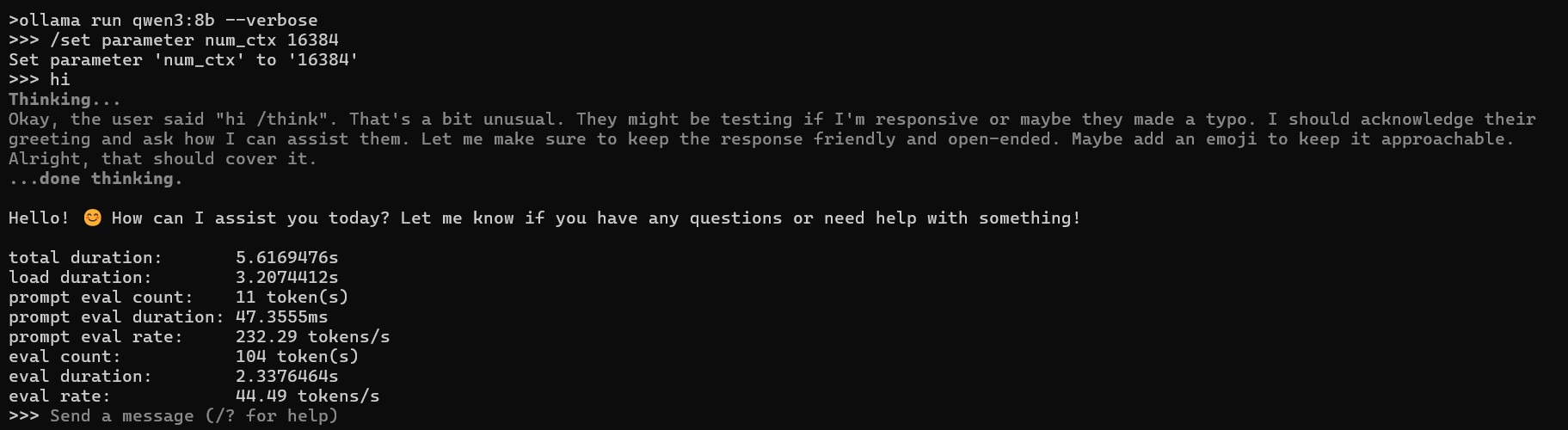
The RTX 4060 with 8GB VRAM comfortably handles 7-8B models in Q4_K_M quantization. Check out our detailed guide to best local LLMs for 8GB VRAM systems for specific model recommendations and benchmarks.
How Ollama Handles VRAM and GPU Offload
Ollama's GPU offloading system is sophisticated yet transparent to users. Understanding how it works helps you optimize performance:
Automatic Layer Offloading
Ollama automatically determines how many model layers to offload to GPU based on available VRAM. Each model consists of multiple transformer layers. For example, Qwen 3 8b has 36 layers.
When VRAM is sufficient, Ollama loads 100% of layers to GPU for maximum performance. When VRAM is constrained, it splits layers between GPU (fast) and system RAM (slow), processing some on GPU and others on CPU.
Manual Layer Control
Advanced users can manually control layer offloading via the num_gpu parameter in a Modelfile:
FROM llama3.1:8b
PARAMETER num_gpu 25
PARAMETER num_thread 8
This forces Ollama to load exactly 25 layers to GPU and the remainder to CPU. However, Ollama's automatic detection is generally optimal.
Practical Example: RTX 4060 with Manual Layer Control
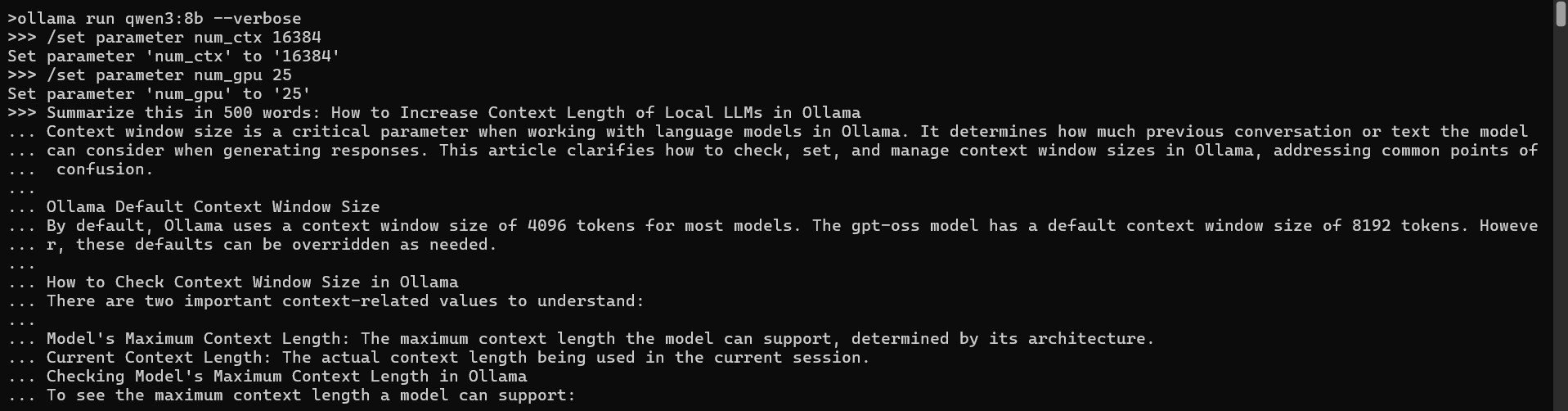
Setting num_gpu 25 on the same RTX 4060 8GB system demonstrated significant VRAM reduction compared to automatic full-offload (4.8GB vs 7.2GB). However, the performance penalty was substantial:
- Test Configuration: Qwen 3 8B Q4_K_M @ 16K context with
num_gpu 25 - VRAM Usage: 4.8GB (saving 2.4GB vs full GPU offload)
- Performance: 8.62 tokens/sec (4.7x slower than full GPU's 40.58 tokens/sec)
Use manual layer control strategically, it's valuable for fitting larger models into constrained VRAM, but expect significant speed trade-offs compared to full GPU acceleration.
CPU-Only Alternative (num_gpu 0):
For true CPU-only inference on 12th Gen Intel(R) Core(TM) i7-12700H hardware, setting num_gpu 0 resulted in:
- VRAM usage: 0GB (pure CPU inference)
- Prompt processing: 20.77 tokens/sec (competitively fast)
- Generation speed: 5.61 tokens/sec (acceptable for batch workloads)
- Context note: Testing with truncated context (4k default) and condensed article
This shows CPU-only mode as a viable fallback when VRAM constraints rule out all GPU options, though significantly slower than even partial GPU offloading.
Performance Impact of Automatic RAM Overflow
When a model exceeds available VRAM and Ollama automatically "spills" layers to system RAM (different from manual num_gpu control), performance degrades dramatically:
- Full GPU: 40-45 tokens/s
- Partial offload (70% GPU, 30% CPU): 10-15 tokens/s
- CPU-only fallback: 3-6 tokens/s
Tests show models running with RAM overflow can be 5-30x slower compared to fitting entirely in VRAM, with our benchmarks showing Qwen 3 8B model dropping from 40 tokens/s (full VRAM) to just 8 tokens/s with only 25 of the 36 layers in VRAM.
The bottleneck is PCIe bandwidth, data transfer between system RAM and VRAM over PCIe.
Ollama VRAM Optimization Strategies
Maximizing performance on limited hardware requires strategic optimization:
- Choose Optimal Quantization
Q4_K_M is the sweet spot for most users, best balance of quality, speed, and memory efficiency. Going lower (Q3, Q2) causes significant quality degradation and unpredictable behavior. Going higher (Q6, Q8) requires substantially more VRAM with diminishing quality improvements.
Quantization quality hierarchy:
- Q2: Smallest, severe quality loss, not recommended
- Q3: Small, noticeable quality degradation
- Q4_K_M: Recommended - optimal quality/size ratio
- Q5_K_M: Excellent quality, moderate size increase
- Q6_K: Near-original quality, larger VRAM needs
- Q8_0: Minimal quality loss, 2x VRAM vs Q4
For a deep dive into what quantization actually is and how different methods work, check out our comprehensive quantization explained guide.
- Reduce Context Length
Context window directly impacts KV cache size. If running into VRAM limits, reduce context from default:
ollama run qwen3:8b
# In chat: /set parameter num_ctx 4096
Reducing context from 8K to 4K can save 0.2-0.4GB VRAM for 7-8B models.
- Enable Flash Attention
Flash Attention is an optimization that reduces VRAM usage and increases inference speed with zero quality degradation. Enable it via environment variable:
macOS/Linux:
export OLLAMA_FLASH_ATTENTION=1
Windows PowerShell:
$env:OLLAMA_FLASH_ATTENTION=1
Flash Attention is a prerequisite for KV cache quantization and will likely become the default in future Ollama versions.
- Use KV Cache Quantization
KV cache quantization is revolutionary for VRAM optimization. It quantizes the attention cache to lower precision:
# Q8_0 (recommended): halves KV cache memory
export OLLAMA_KV_CACHE_TYPE=q8_0

# Q4_0 (aggressive): reduces KV cache to 1/3 size
export OLLAMA_KV_CACHE_TYPE=q4_0
KV cache quantization can however cause significant quality loss.
- Consider CPU-Only for Specific Workloads
While GPU acceleration is vastly superior, CPU-only inference can work for:
- Batch processing: Overnight jobs where high latency and throughput are acceptable
- Very large models: When you have abundant system RAM (64-256GB) but limited VRAM
- Testing/development: Quick model evaluation without GPU requirements
Optimization tips for CPU inference:
- Use 4-6 threads maximum (not all available cores)
- Ensure the model fits entirely in RAM to avoid disk swapping
- Prefer smaller models (8B Q4) over larger models with aggressive quantization
GPU Compatibility and Multi-GPU Support
Refer to the official Ollama GPU guide for complete details.
NVIDIA GPUs
Ollama supports NVIDIA via CUDA with compute capability 5.0+ and driver version 531+.
Supported Architectures:
- 12.0 (Blackwell): GeForce RTX 50xx series; Professional RTX PRO 4000–6000 Blackwell.
- 9.0 (Hopper): H100, H200.
- 8.9 (Ada Lovelace): GeForce RTX 40xx series; Professional L4, L40, RTX 6000.
- 8.6–8.0 (Ampere): GeForce RTX 30xx series; A100, A30, A40, A10, A16, A2.
- 7.5 (Turing): GeForce RTX 20xx/GTX 1650 Ti, TITAN RTX; Professional T4, RTX 5000–3000, T-series; Quadro RTX 8000–4000.
- 7.0 (Volta): TITAN V, V100, Quadro GV100.
- 6.1–5.0 (Pascal/Maxwell): TITAN Xp/X; GeForce GTX 10xx/9xx/7xx series; Quadro/Tesla P/M/K-series.
Multi-GPU: Set CUDA_VISIBLE_DEVICES to comma-separated IDs or UUIDs (from nvidia-smi -L). Force CPU: -1.
Linux Suspend/Resume Fix: Reload driver with sudo rmmod nvidia_uvm && sudo modprobe nvidia_uvm.
AMD GPUs
Ollama uses ROCm for AMD support.
Linux:
- Radeon RX: 7900–6800 series, Vega 64.
- Radeon PRO: W7900–W6800 series, V620/V420/V340/V320, Vega II Duo/SSG.
- Instinct: MI300–MI60 series.
Windows (ROCm v6.1):
- Radeon RX: 7900–6800 series.
- Radeon PRO: W7900–W6800 series, V620.
Multi-GPU: Set ROCR_VISIBLE_DEVICES to comma-separated IDs or UUIDs (from rocminfo). Force CPU: -1.
SELinux (Linux Containers): Enable with sudo setsebool container_use_devices=1.
Overrides for Unsupported (Linux): Use HSA_OVERRIDE_GFX_VERSION="x.y.z" (e.g., "10.3.0" for gfx1034 like RX 5400). Per-device: HSA_OVERRIDE_GFX_VERSION_N=....
Supported LLVM Targets:
| Target | Example GPU |
|---|---|
| gfx908 | Radeon Instinct MI100 |
| gfx90a | Radeon Instinct MI210 |
| gfx940 | Radeon Instinct MI300 |
| gfx941 | |
| gfx942 | |
| gfx1030 | Radeon PRO V620 |
| gfx1100 | Radeon PRO W7900 |
| gfx1101 | Radeon PRO W7700 |
| gfx1102 | Radeon RX 7600 |
Apple Devices
Ollama supports GPU acceleration on Apple devices via the Metal API.
Vulkan (Experimental)
Extends support for additional AMD/Intel GPUs on Linux/Windows. Enable: OLLAMA_VULKAN=1.
Linux Setup:
- Intel: See Intel dGPU docs.
- AMD: See AMDGPU Vulkan guide. Add
ollamatorendergroup if needed.
VRAM Scheduling: Requires root or sudo setcap cap_perfmon+ep /usr/local/bin/ollama; otherwise, uses model size approximations.
Multi-GPU: Set GGML_VK_VISIBLE_DEVICES to numeric IDs. Disable: -1.
Ollama System Requirements and Compatibility
Windows Requirements
System Requirements
Windows 10 22H2 or newer (Home or Pro)
Optional GPU acceleration:
NVIDIA GPU → Driver version 452.39 or newer
AMD Radeon GPU → Latest AMD Radeon driver
Terminals must support Unicode characters (some older Windows 10 terminal fonts may show squares)
Filesystem Requirements
~4 GB for Ollama binaries
Tens to hundreds of GB for LLM models
Installs to home directory by default
Can relocate binaries (/DIR= flag)
Can relocate models via OLLAMA_MODELS environment variable
Key Locations
Models & config: %HOMEPATH%\.ollama
Logs & updates: %LOCALAPPDATA%\Ollama
Binaries: %LOCALAPPDATA%\Programs\Ollama
macOS Requirements
System Requirements
macOS Sonoma (14+)
Apple Silicon (M-series) → CPU + GPU acceleration
Intel Mac → CPU only (no GPU acceleration)
Filesystem Requirements
Models require tens to hundreds of GB
Installed app can reside anywhere, but:
CLI must be in PATH (/usr/local/bin/ollama) or symlinked
Default data locations:
~/.ollama - models & config
~/.ollama/logs - logs
<Ollama.app>/Contents/Resources/ollama - CLI binary
Linux Requirements
System Requirements
Linux (AMD64 or ARM64)
Optional GPU acceleration:
NVIDIA GPU → CUDA drivers installed
AMD GPU → ROCm v6 + compatible AMD drivers
Filesystem Requirements
Models need tens to hundreds of GB
Default directories:
/usr/bin/ollama - binary
/usr/lib/ollama - libraries (may vary)
~/.ollama - models & config
/usr/share/ollama - data directory when running as a service (Linux-specific)
Driver Notes
NVIDIA: must install CUDA & verify with nvidia-smi
AMD:
Kernel's built-in amdgpu is older
Recommended: install latest AMD ROCm driver for full support
Conclusion
VRAM is a hard boundary, not a soft limit. Fit your model entirely in VRAM or accept performance that's 5-20x slower. Every benchmark in this guide confirms this reality.
You don't need expensive hardware for capable local LLMs. An 8GB card delivers 40+ tokens/second with 7-8B models at Q4_K_M, fast enough for real work but of course you will need more VRAM for agentic coding or vibe coding tasks as it requires larger models and context window. If buying new hardware: 8GB covers essentials, 12GB adds flexibility, 16-24GB enables 30B+ models, 48GB handles 70B workstation inference.
For existing hardware, Q4_K_M quantization, context management, and KV cache optimization extend capabilities significantly. But be realistic, partial GPU offloading kills performance, aggressive KV quantization degrades quality. Sometimes choosing models that match your VRAM beats fighting impossible configurations.
Frequently Asked Questions
Can Ollama run without a GPU or with low VRAM?
Yes, Ollama runs entirely on CPU without a GPU, though performance is significantly slower. For low VRAM situations, use aggressive quantization (Q3 or Q4) and stick to smaller parameter models (3-7B). CPU inference delivers 3-6 tokens/s on modern processors, acceptable for batch jobs but frustrating for interactive use.
What happens if my model exceeds available VRAM?
Ollama automatically offloads excess layers to system RAM when a model exceeds VRAM. While this prevents crashes, the performance penalty is substantial, tests show speeds dropping 5-20x when overflowing into RAM.
Does Ollama work with AMD GPUs or only NVIDIA?
Ollama supports both NVIDIA and AMD GPUs. NVIDIA GPUs offer widest compatibility and best performance via mature CUDA support. AMD support uses ROCm library, which is more complex to set up and has limited GPU compatibility. Many AMD users report success with workarounds like HSA_OVERRIDE_GFX_VERSION for unsupported cards.
What is the best quantization level for Ollama?
Q4_K_M is the recommended quantization for most users, it offers the best balance of quality, VRAM efficiency, and speed. Q5_K_M provides marginally better quality at 15-20% higher VRAM cost. Q6_K and Q8_0 approach original model quality but require substantially more VRAM with diminishing returns. Avoid Q3 and Q2 unless absolutely necessary, quality degradation becomes severe.
How much VRAM do I need to run Ollama models locally?
For most users, 8-12GB VRAM is the sweet spot for running Ollama models locally. This allows you to run 7-8B parameter models like Llama 3.1 8B and Qwen 3 8B with Q4_K_M quantization at 40+ tokens/second. Entry-level GPUs with 4-6GB VRAM can handle smaller 3-4B models, while 16-24GB VRAM supports larger 13-32B models with higher quality quantization and extended context windows.
What is Q4_K_M quantization and why is it recommended for Ollama?
Q4_K_M quantization compresses model weights to 4-bit precision, reducing VRAM requirements by approximately 75% compared to full FP16 precision while maintaining excellent output quality. It represents the optimal balance between memory efficiency, inference speed, and model performance for consumer hardware. For example, an 8B model in Q4_K_M uses around 5-6GB instead of 16GB, making it the gold standard for local LLM deployment with Ollama.
Can I use multiple GPUs with Ollama for larger models?
Yes, Ollama supports multi-GPU configurations for NVIDIA and AMD cards. For NVIDIA, set CUDA_VISIBLE_DEVICES to comma-separated GPU IDs to distribute model layers across multiple GPUs. This enables running 70B models on dual 24GB GPUs (48GB total) that wouldn't fit on a single card. For AMD GPUs, use ROCR_VISIBLE_DEVICES with the same approach to leverage combined VRAM across multiple cards.