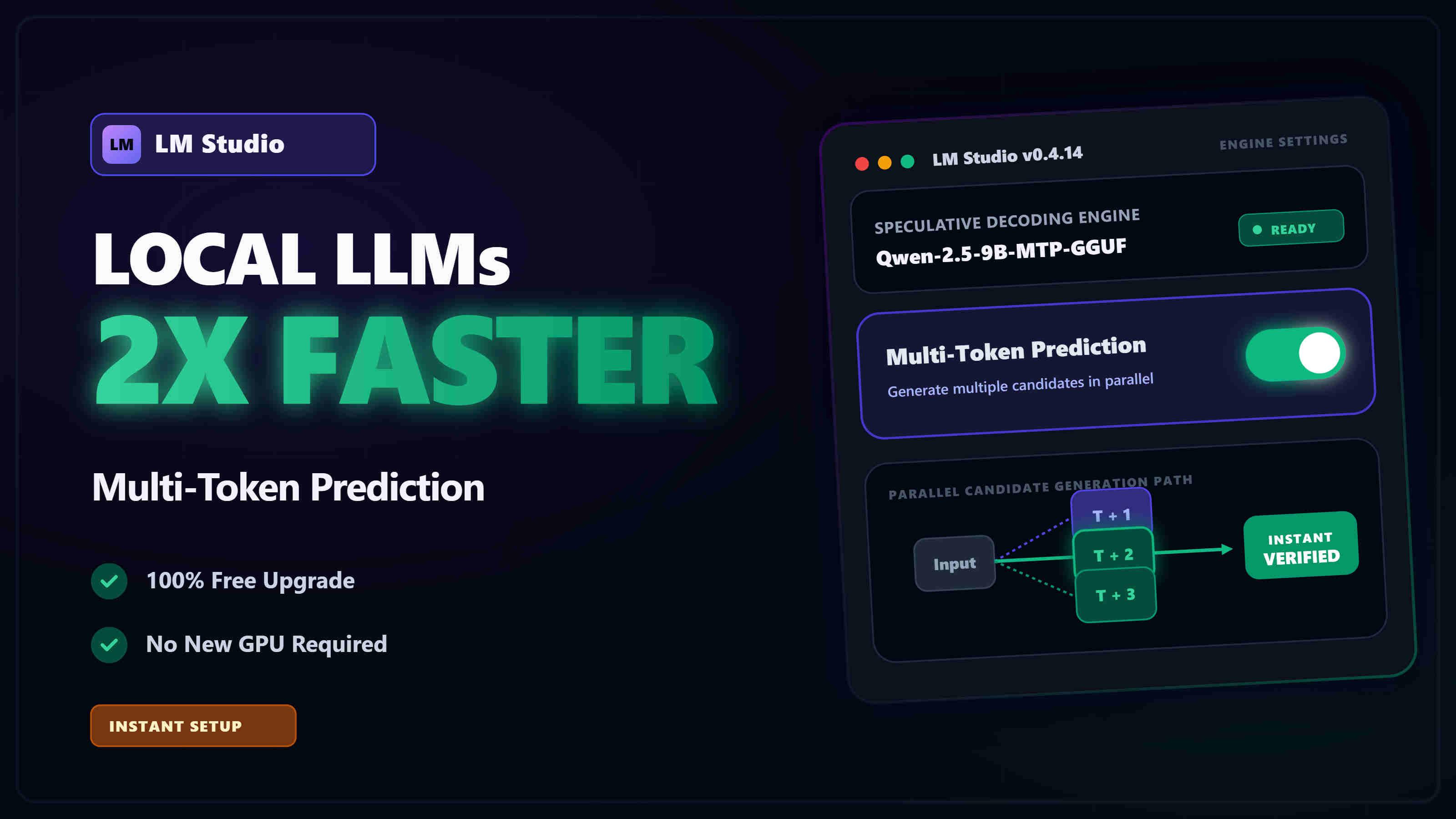
Multi-Token Prediction (MTP) LM Studio Tutorial - Boost tokens/sec
Imagine unlocking a 50% to 100%+ speed boost on your local LLMs without spending a single dime on a new GPU. No complex dual-model setups, no massive memory overhead, and no painful latency cliffs.
With the latest release of LM Studio, you can now run Multi-Token Prediction (MTP) speculative decoding natively. By utilizing models trained to "look ahead" and predict multiple tokens simultaneously, you can instantly supercharge your throughput and enjoy a much snappier, more responsive generation experience—whether you are running a budget-friendly RTX 3060 or 4060, a mid-tier card like the RTX 4070 or 4080, or a high-end powerhouse like the RTX 3090, 4090, or the flagship RTX 5090.
In this step-by-step tutorial, we’ll show you how to implement Multi-Token Prediction in LM Studio, from selecting Unsloth's optimized MTP GGUF models to tuning the developer parameters for peak performance on your hardware.
(Prefer a visual guide? Watch my full video breakdown below where I explain what MTP is, exactly how to download the right models, and walk you through the entire setup process!)
What You'll Learn
- What Multi-Token Prediction (MTP) is and how it differs from standard speculative decoding
- Which LM Studio version you need and how to verify it
- How to find and download the right MTP-enabled model from Unsloth
- How to enable Developer Mode for real-time performance metrics
- How to load your model with MTP Speculative Decoding turned on
- How to fine-tune MTP parameters to squeeze out peak tokens/sec on your hardware
What is Multi-Token Prediction (MTP)?
To understand MTP, it helps to compare three different ways LLMs can generate text:
- Standard Inference (Autoregressive): Traditionally, an LLM calculates and outputs exactly one token at a time, feeding that token back into itself to predict the next one. This sequential process is bottlenecked by latency and leaves a lot of the parallel processing power of modern GPUs sitting idle.
- Traditional Speculative Decoding: This technique speeds things up by introducing a second, smaller "draft model" alongside your main model. The draft model quickly guesses several future tokens, and the massive main model verifies them in parallel. While much faster, it requires enough VRAM to hold two separate models in memory simultaneously.
- Multi-Token Prediction (MTP): MTP is a next-generation evolution of speculative decoding. Instead of relying on a separate draft model, an MTP-enabled model has built-in prediction heads. It acts as its own draft model—drastically reducing memory overhead, eliminating dual-model latency, and delivering explosive gains in throughput.
Quick Comparison
| Feature | Standard Inference | Traditional Speculative Decoding | Multi-Token Prediction (MTP) |
|---|---|---|---|
| Tokens Generated | 1 token at a time | Multiple tokens at once | Multiple tokens at once |
| Model Count | 1 Model | 2 Models (Main + Draft) | 1 Model (Self-drafting) |
| VRAM Usage | Base Model Size | High (Needs space for 2 models) | Base Model + Minimal MTP overhead |
| Speed | Baseline (Slowest) | Fast | Extremely Fast |
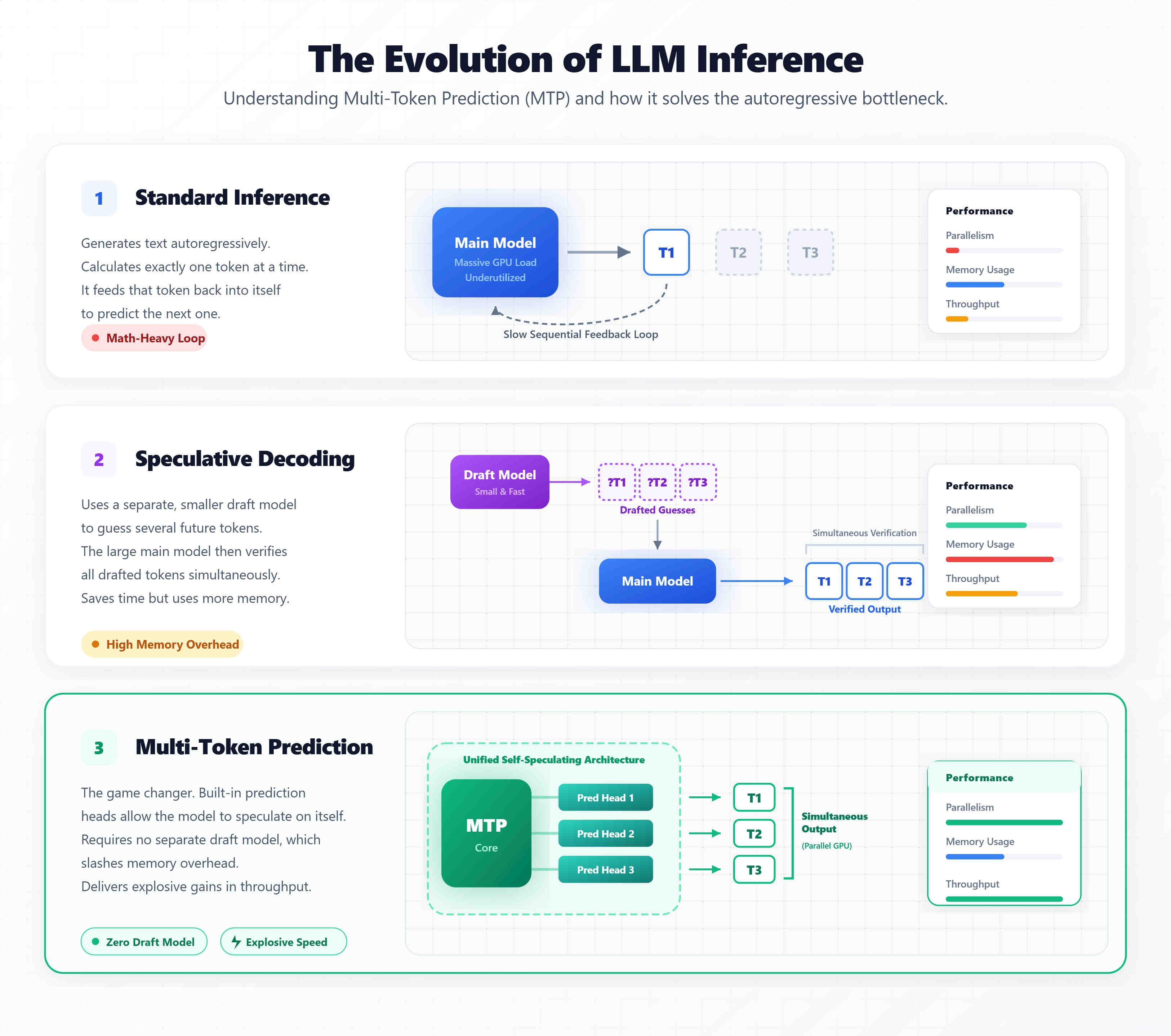
Unlike traditional speculative decoding which requires loading two separate models into VRAM, MTP utilizes built-in prediction heads to self-draft tokens, significantly streamlining the inference process.
Prerequisites: Update LM Studio
MTP support is now available in the stable version of LM Studio.
Before we begin, you must ensure your app is fully updated. You will need LM Studio version 0.4.14 (Build 4) or higher.
How to check your version:
- Click on the Settings gear icon at the bottom of the left sidebar.
- Navigate to the General tab.
- Verify your version number at the top. If you are on an older version, update the application before proceeding.
Step 1: Finding and Downloading an MTP-Enabled Model
Not all models support MTP; they must be specifically trained and compiled with MTP prediction heads. For this tutorial, we will be using an MTP-enabled Qwen 3.5 9B model compiled by the incredible team at Unsloth.
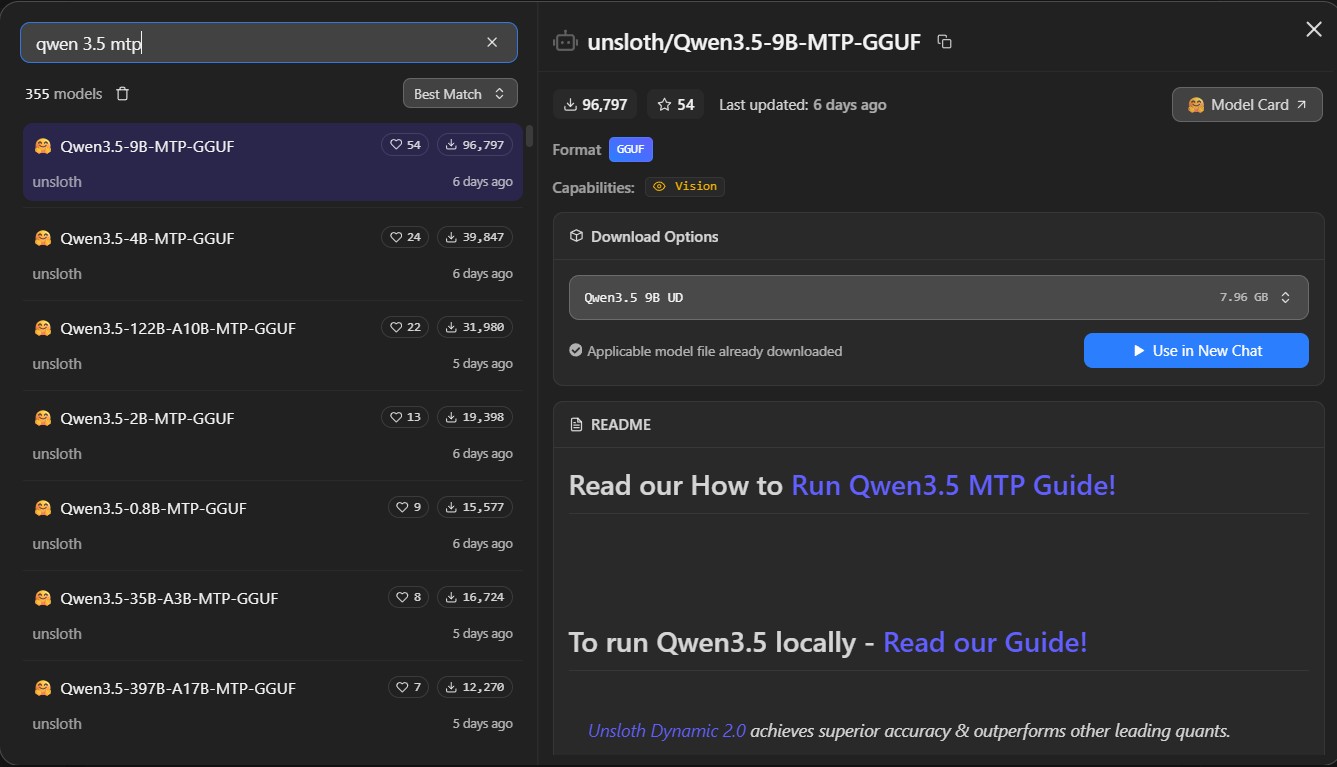
- Open LM Studio and click on the Search icon (magnifying glass) on the left sidebar.
- We are looking for this specific repository:
unsloth/Qwen3.5-9B-MTP-GGUF(orunsloth/Qwen3.5-2B-MTP-GGUFif you have very limited VRAM). - Search for "unsloth MTP" to pull up the available options.
Which Quantization Should You Pick?
For this guide, we are testing on an NVIDIA RTX 4060 with 8GB of VRAM.
To maximize intelligence while fitting comfortably in 8GB, we recommend downloading the Q4_K_XL (UD = Unsloth Dynamic) quantization. It is slightly larger in file size than the standard Q4_K_M, but Unsloth guidance indicates it performs noticeably better on reasoning and intelligence tasks.
💡 Tip
Sizing for your GPU for beginners
You can download larger or smaller models depending on your VRAM. The quickest way to ensure a model will run efficiently is to look at the listed file size in LM Studio. If the file size is within your total VRAM (or only slightly over, allowing for minimal system RAM offload), you are good to go. While the exact VRAM math is a bit more complex, this is the simplest rule of thumb.
Step 2: Enable Developer Mode for Advanced Metrics
While MTP will work without this step, enabling Developer Mode gives us the critical telemetry needed to actually see our performance gains.
- Go to Settings (gear icon, bottom left).
- Click on the Developer tab.
- Toggle on Developer Mode.
Turning this on unlocks a detailed statistics panel in the chat interface, providing real-time data on your tokens/sec, total tokens processed, and the crucial acceptance rate of the MTP drafts.
Step 3: Loading the Model with MTP Enabled
Now it's time to fire up the model and flip the switch.
- Click on the My Models icon (folder icon) at the top of the left sidebar to view your downloaded models.
- Select the
Qwen3.5-9B-MTP-GGUFmodel you just downloaded. - On the right-hand Load Model panel, scroll down through the configuration options.
- Locate the toggle for MTP Speculative Decoding and make sure it is turned ON.
- Click the Load Model button.
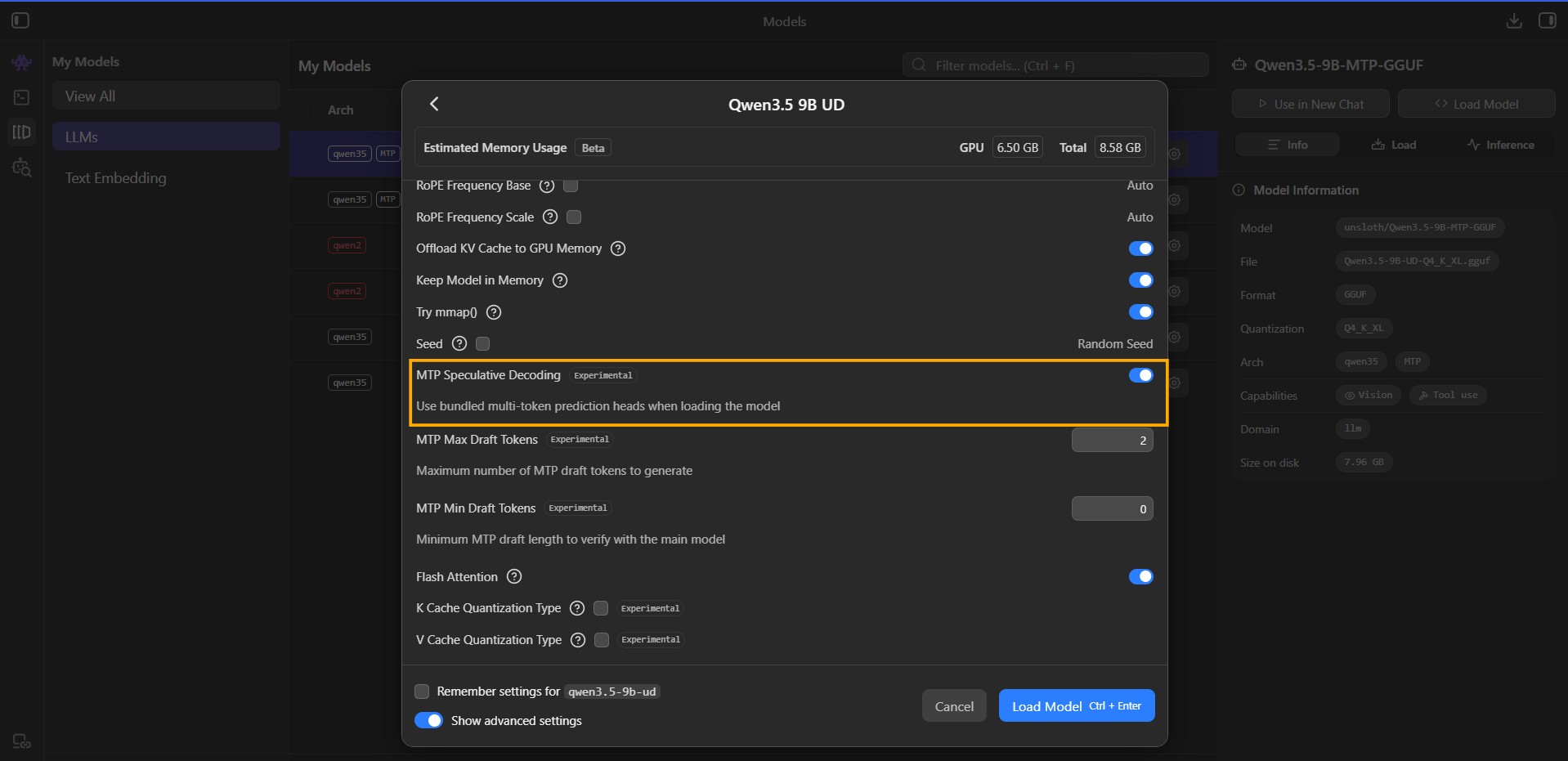
Once loaded, jump into the chat interface and send the model a prompt. You should immediately feel the difference. Depending on the complexity of the task, you can expect a massive 1.5x to 3x jump in throughput.
Step 4: Fine-Tuning MTP Parameters for Peak Performance
By default, LM Studio provides standard configuration values, but the true power user experience comes from tuning these to your specific hardware.
Below the MTP Speculative Decoding toggle in the Load Model panel (The one in step 3), you will see two primary parameters:
- Maximum number of MTP draft tokens: How many tokens the prediction head should attempt to guess ahead of the main model.
- Minimum MTP draft length to verify: The minimum number of predicted tokens required before the main model steps in to verify them.
Finding Your Sweet Spot
In our testing on the RTX 4060 8GB using the Qwen3.5-9B-MTP-GGUF model, the default values of 2 max draft tokens and 0 min draft length performed exceptionally well.
- Without MTP: ~15 tokens/sec
- With Default MTP: ~22 tokens/sec
That is a nearly 50% speed increase right out of the box! However, the optimal settings can vary wildly depending on your specific GPU, the size of the model, and even the type of task (coding vs. creative writing).
How to optimize:
- Start by slightly increasing the Maximum number of MTP draft tokens (e.g., bump it to 3 or 4). Monitor your tokens/sec in the developer panel. If speed goes up, keep pushing until it regresses. If it drops, the draft model is guessing too far ahead, making mistakes, and forcing the main model to recalculate (lowering the acceptance rate).
- Once you find the optimal max draft size, you can begin experimenting with the Minimum MTP draft length. Start small and increase in single steps, monitoring the real-world throughput.
By taking a few minutes to dial in these parameters, you ensure that you are extracting every ounce of performance from your local hardware setup. (If you want to push your hardware even further, such as for massive document analysis, be sure to check out our guide on how to increase context length in LM Studio to properly balance your VRAM limits.) Enjoy the blistering fast generation!
Conclusion & Key Takeaways
Multi-Token Prediction (MTP) is one of the most exciting developments for local LLM enthusiasts. It shifts the burden of speculative decoding from VRAM overhead to highly efficient, self-contained model architecture.
Here is a quick recap of what we covered:
- Free Speed Upgrade: MTP natively boosts your tokens/sec generation by 50% to 100%+ on existing hardware.
- No Draft Model Needed: Because MTP uses built-in prediction heads, you don't have to load a separate, smaller model into VRAM, drastically simplifying your setup.
- Specific Models Required: You must use models specifically compiled with MTP (like the Unsloth MTP GGUF models) to enable this feature.
- Tuning is Key: Don't just settle for the default parameters! Experiment with the Maximum draft tokens and Minimum draft length in LM Studio's Developer settings to find the absolute peak performance for your specific GPU.
With MTP enabled, local AI inference is closer than ever to feeling as instant and responsive as cloud-based APIs. And if your local hardware still struggles with the models you want to run, you can completely offload the processing to a free cloud GPU using our LM Link tutorial for LM Studio. Happy generating!
Frequently Asked Questions
What version of LM Studio is required for MTP?
You need LM Studio version 0.4.14 (Build 4) or higher to use Multi-Token Prediction. You can check your version in Settings (bottom of the left sidebar) under General.
How much of a speedup can I expect with MTP in LM Studio?
Depending on the model, task, and your hardware, you can typically expect a 1.5x to 3x increase in throughput (tokens/sec) when MTP speculative decoding is enabled.
What are the recommended default MTP settings to start with?
A good starting point is setting the 'Maximum number of MTP draft tokens' to 2 and 'Minimum MTP draft length to verify' to 0. These defaults often provide a solid baseline speedup.