How to Run a Local LLM on Windows in 2026
Running a full ChatGPT-style AI entirely on your own Windows PC - no subscription, no cloud, no data leaving your machine - is no longer a power-user experiment. It's genuinely practical in 2026, and depending on your GPU, you can get responses that rival hosted models in speed and quality. Whether you're a developer who wants a private local API, a hobbyist curious about open-source models, or someone who just wants a capable AI assistant that works offline on a plane, this guide has a path for you. Whether you prefer a polished Graphical User Interface (GUI) or a straightforward Command Line Interface (CLI), we've got you covered. The two easiest-to-setup engines, LM Studio and Ollama, both come with excellent GUI and CLI options.
The local AI ecosystem has matured rapidly: tools like LM Studio, Ollama, and llama.cpp have each hit a level of polish and reliability that makes setup a matter of minutes, not days. But "which tool" is only half the question - choosing the right model size for your hardware is what separates a snappy, useful assistant from a frustrating crawl. This guide walks you through all of it: the three best toolchains for Windows (ranked by ease), the exact hardware thresholds to know before you download anything, and the specific model recommendations that punch above their weight at every VRAM tier.
TL;DR: Three easy paths
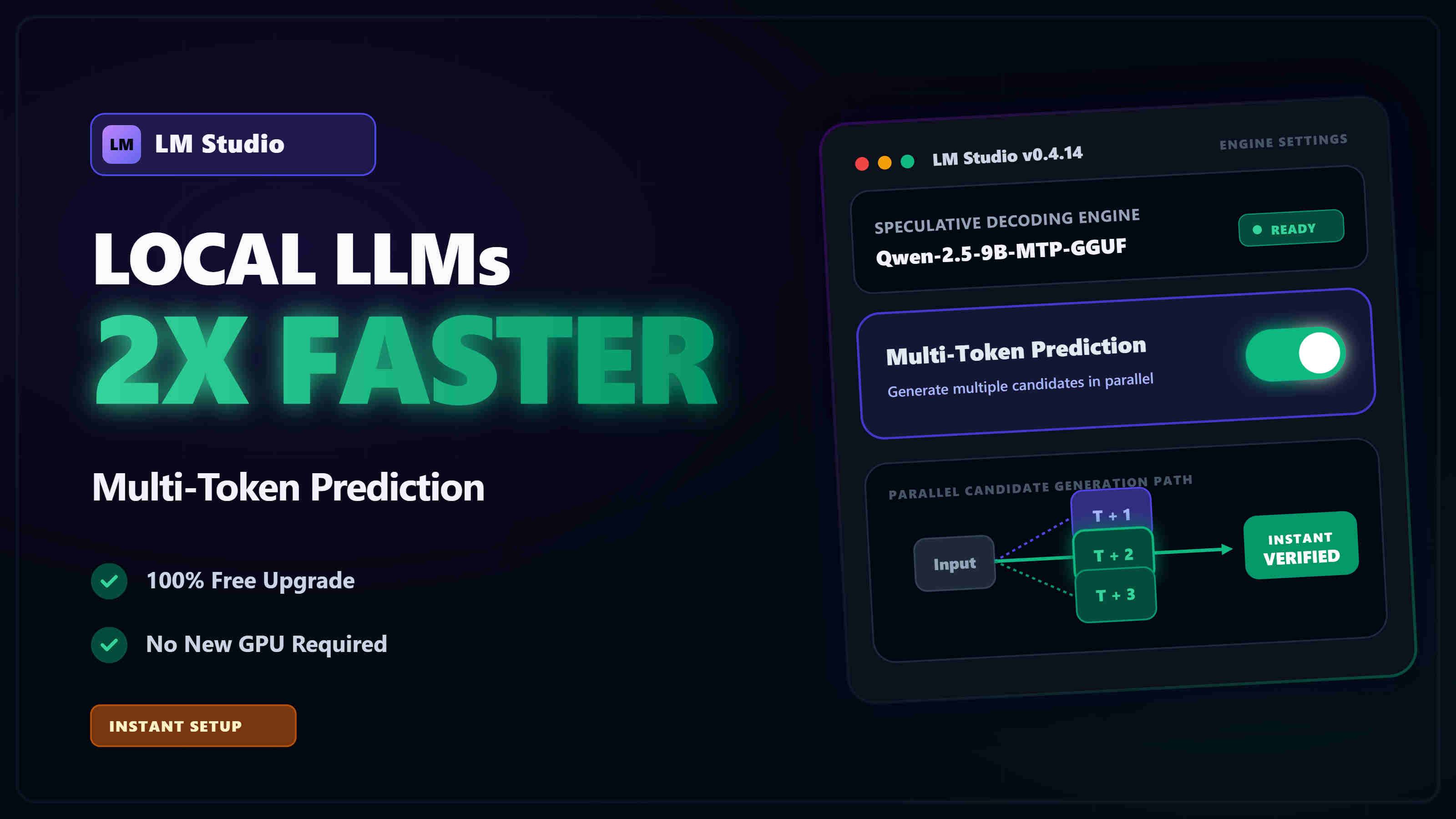
- LM Studio (easiest GUI): Download the Windows app, pick a model, click Run. Great if you want zero terminal commands and a polished chat UI - plus an optional local API for your own apps.
- Ollama (simple CLI + API): Install once, then
ollama run llama3.1and chat in your terminal or via an OpenAI-compatible local server athttp://localhost:11434. Add Open WebUI for a nice browser UI. - llama.cpp (advanced & ultra-portable): Use the ultra-lean C/C++ runtime for blazing-fast inference with GGUF models; perfect for tinkerers and fine-grained control. Pair with Text-Generation-WebUI or Open WebUI for a front-end.
What you'll need (hardware & OS)
- Windows 11 or Windows 10 (recent builds). Windows 11 is preferred for better WSL2 integration if you need Linux-native tools.
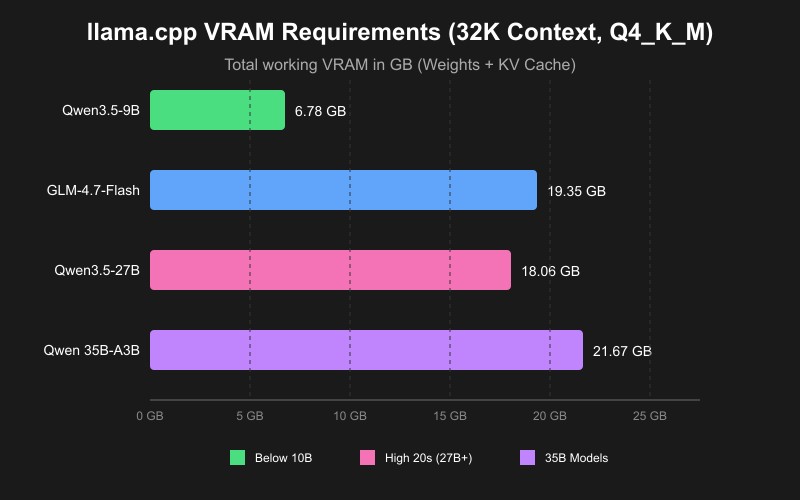
- GPU VRAM matters most. Local LLMs are memory-hungry; enough VRAM prevents spillover into slower system RAM, which causes severe speed drops. A helpful rule of thumb: target ~1.2× to 1.4x the model's on-disk size in available VRAM, or use our Interactive VRAM Calculator to get exact numbers, ensuring enough headroom for both the model weights and the context window. If you only have 8–12 GB VRAM, choose 8B–15B, 4-bit quantized models. Surprisingly, this tier is now fully capable of running multimodal vision models as well.
- No GPU? You can still run smaller models on CPU - modern processors (Intel i7 10th gen+, AMD Ryzen 5000+) can handle 3B–7B models at around 8–15 tokens/second, which is workable for casual use. CPU inference is 10–30× slower than GPU, so expect noticeable lag on anything larger. LM Studio, Ollama as well as llama.cpp support CPU fallback. Alternatively, if your hardware struggles, you can completely offload the processing to a free cloud GPU using our LM Link Guide.
Good news on speed: Local inference has improved dramatically. Thanks to engine optimizations and leaner model architectures, your existing hardware can now run faster, smarter models with significantly larger context windows than just a year ago. Even modest setups are more viable today than ever.
Quick picks by VRAM
- 8–12 GB (e.g., RTX 4060, 3070, 3060 Ti): The clear winner for this tier is Qwen-3.5-9B (Q4_K_M) - it fits entirely in GPU memory even at higher context lengths, delivers high tokens/sec, and tops the intelligence benchmarks for any sub-10B model. GLM-4.6V-Flash is a strong alternative for shorter contexts, but its decode speed collapses heavily when it spills to system RAM. For detailed performance testing, see our guide to the best local LLMs for 8GB VRAM.
- 16–24 GB (e.g., RTX 4070/4080, 3090): Start with GPT-OSS 20B on the lower end of the VRAM spectrum. Qwen-3.6-27B Reasoning (Dense model) is the best all-around pick - it handles long documents well and scores top-tier on reasoning and coding benchmarks in this VRAM class. Other strong picks include Qwen-3.6-35B A3B (MoE), Gemma-4-31B (Dense), Gemma-4-26B A4B, and GLM-4.7-Flash. See our comprehensive benchmarks for the best local LLMs for 16GB VRAM and 24GB VRAM.
For detailed GPU performance analysis and buying recommendations, check out our complete GPU guide for local LLM inference.
Option 1 - LM Studio (best “download & go” experience)
Why choose it: You get a clean Windows installer, a curated model browser (pulls from Hugging Face), a chat UI, prompt templates, and an optional local server that mimics the OpenAI API for your own apps.
Steps:
- Download and install LM Studio for Windows.
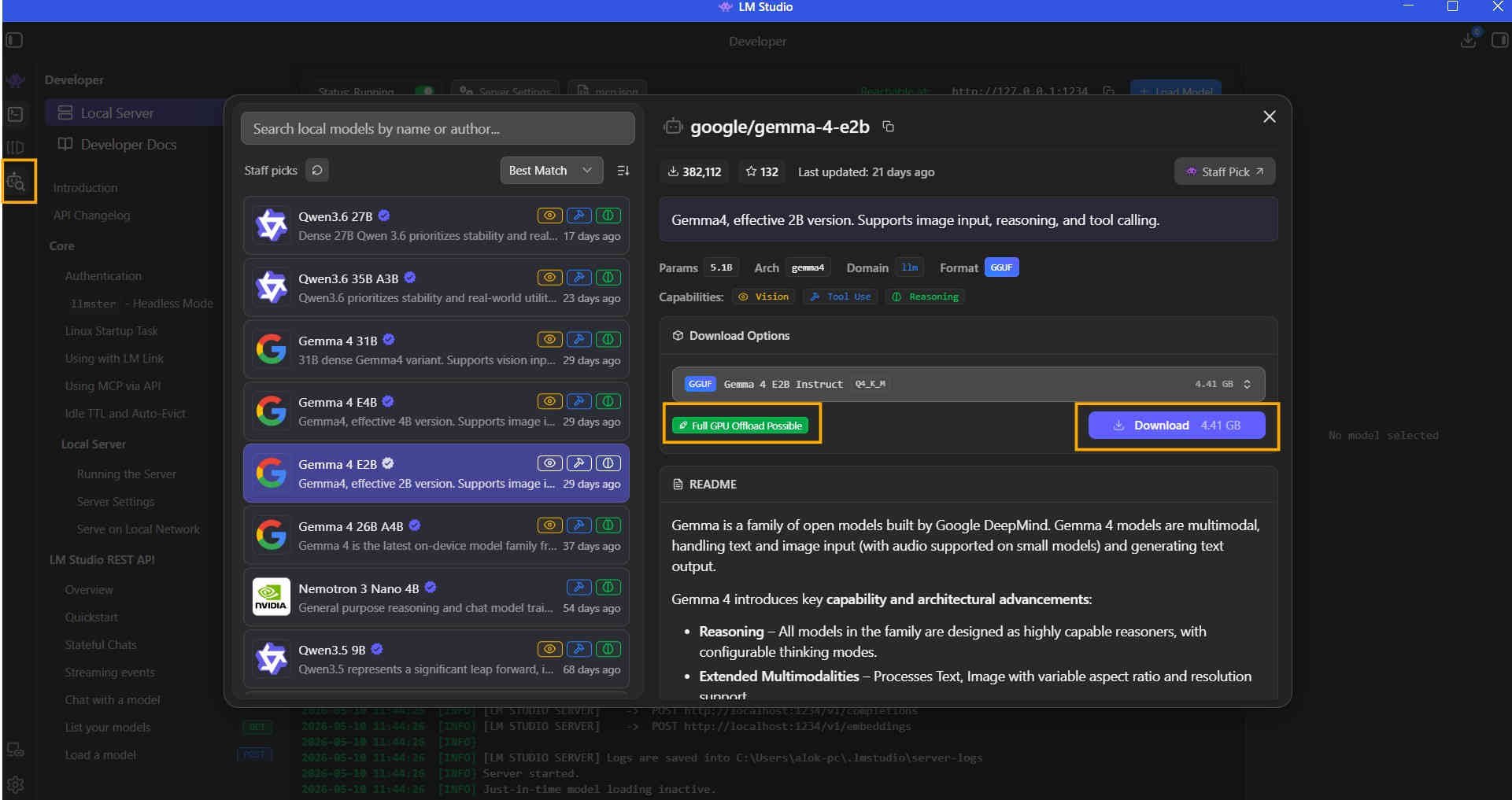
- Click on the Model search button on the left sidebar or press Ctrl + Shift + M shortcut. Search for your preferred model, select it and click Download. When you select a model, it will show either 'Full GPU Offload Possible', 'Partial GPU Offload Possible' or 'Likely too large' depending on your hardware. The models that show 'Full GPU Offload Possible' will perform best for your hardware. Avoid models that show 'Likely too large'.
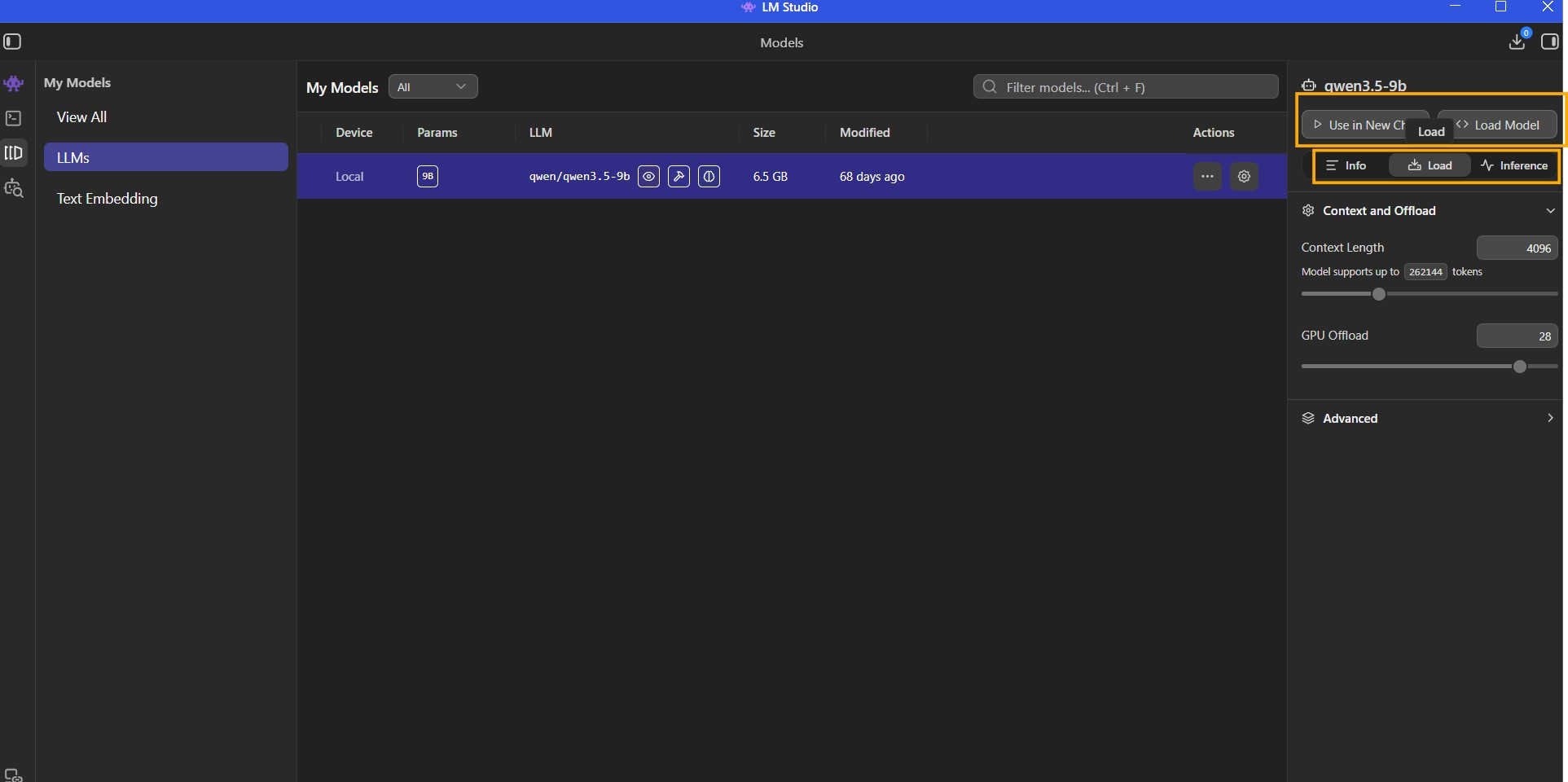
- Close the model search popup and then click on 'My Models' option on the left sidebar, select the model you downloaded and click on the 'Use in New Chat' button on the right sidebar. You can customize the parameters by clicking on the 'Load' and 'Inference' tabs.
Option 2 - Ollama (Native GUI or CLI)
Why choose it: Ollama now offers a simple native GUI app alongside its dead-simple CLI. It runs a local server at localhost:11434, makes model management incredibly easy, and integrates nicely with community UIs like Open WebUI. You can check all available models at the Ollama Library. To understand exact memory usage, check our Ollama VRAM requirements guide. For a deeper dive into other tools, check out our complete guide to Ollama alternatives.
Using the Native GUI App:
- Visit Ollama.com and download the Windows installer.
- Open the Ollama app. In the model dropdown, search for and select your preferred model.
- Ensure you select the models that show a download icon next to them (these run locally on your machine), and avoid the cloud icon.
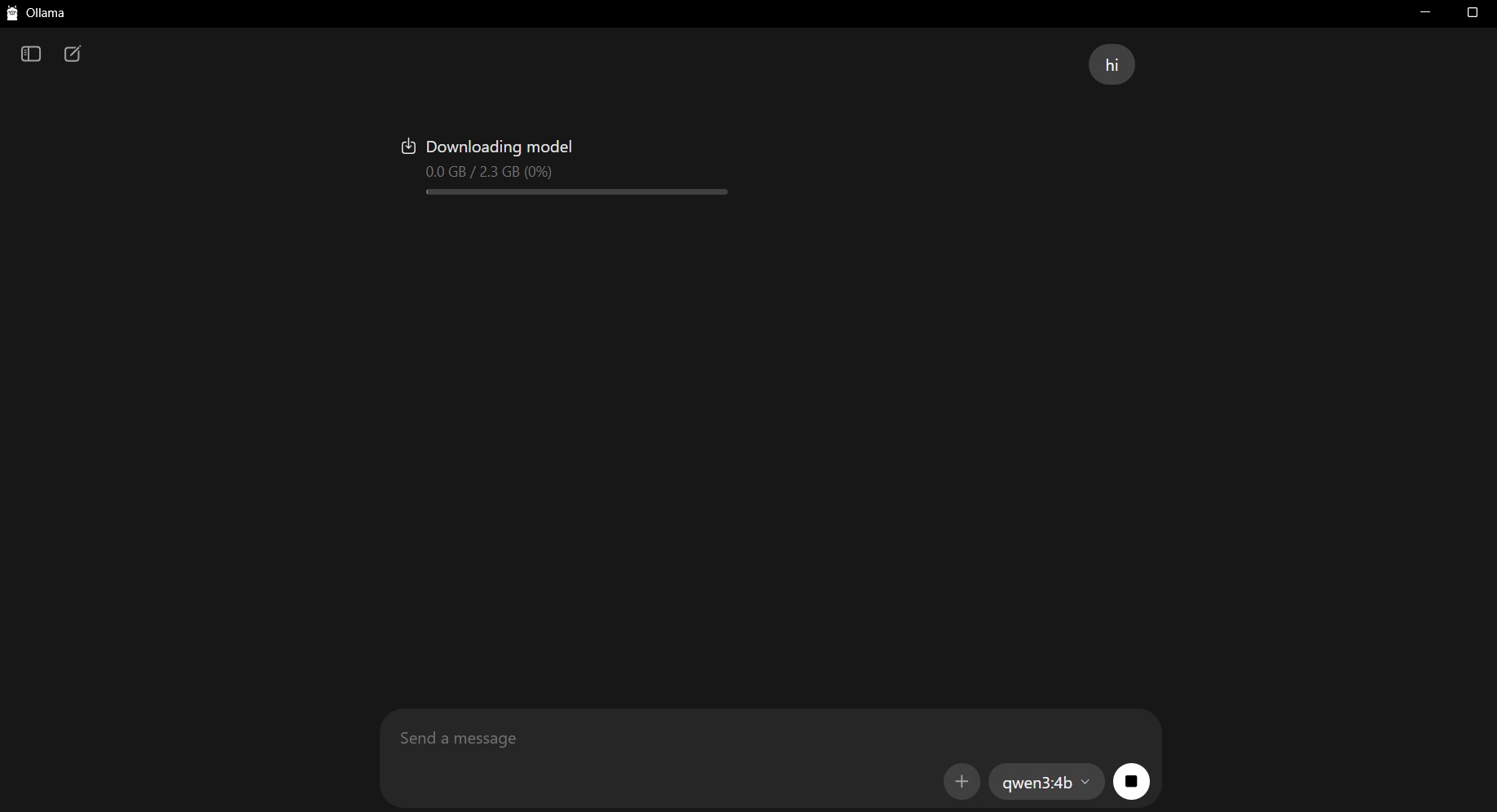
- Send any message (like "hi"). The app will automatically download the model, load it, and reply.
Using the CLI:
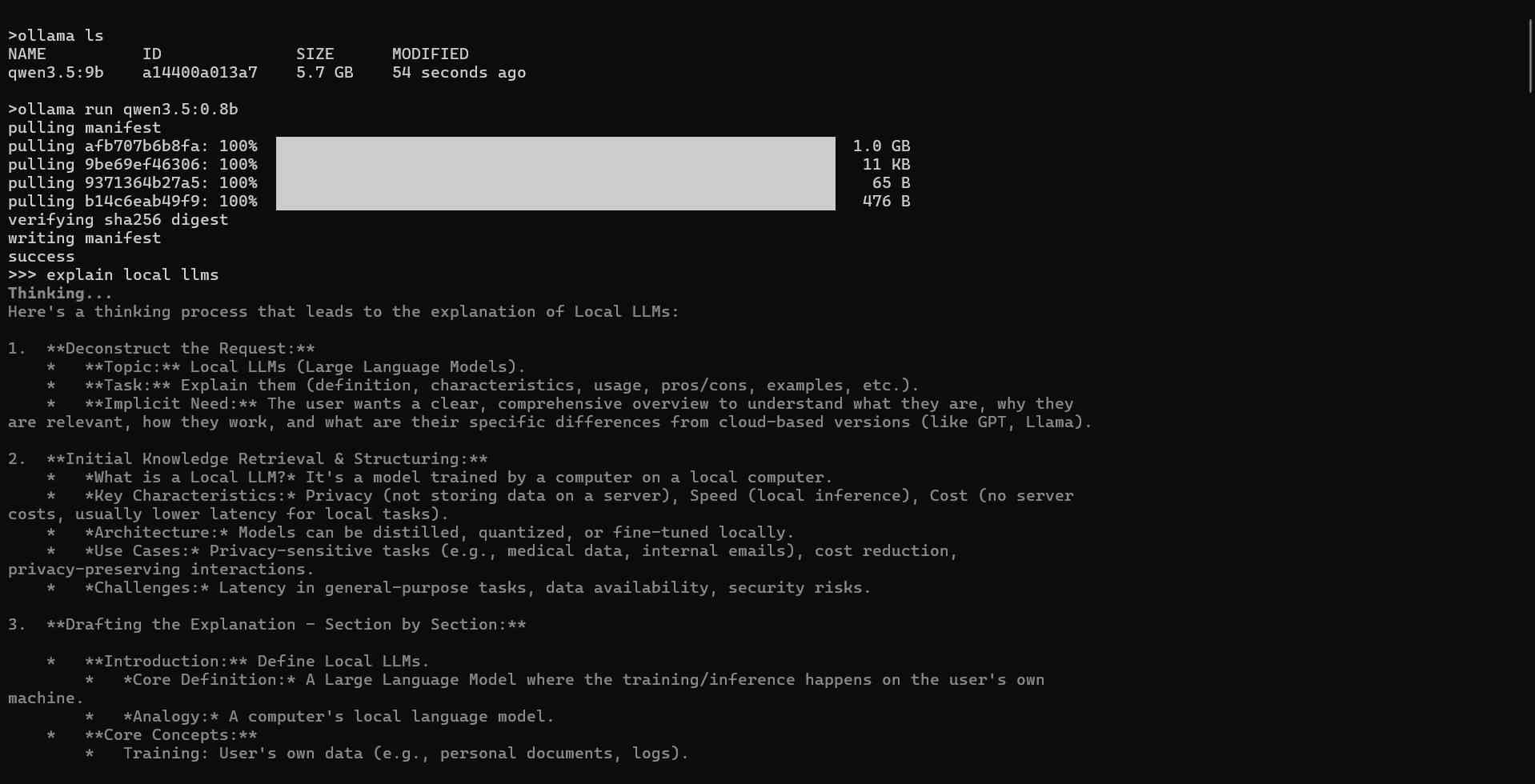
If you prefer the terminal, you can pull and run models with a single command. For example, to run qwen3.5:0.8b:
ollama run qwen3.5:0.8b
You'll get an interactive chat. Swap qwen3.5:0.8b for other models you find in the library. To exit the chat at any time, simply type /bye and press enter.
Add a friendly UI: Open WebUI (works with Ollama)
If you prefer a browser UI with chats, histories, prompts and tools, Open WebUI is a popular choice and now installs cleanly via pip:
pip install open-webui
open-webui serve
Then point it at your running Ollama server and you’re set. The docs recommend Python 3.11 and show the exact commands.
Option 3 - llama.cpp (power-user route + ultimate portability)
Why choose it: llama.cpp is the engine under the hood of much of the local AI ecosystem - it's what makes fast, efficient inference on consumer hardware possible. Running it directly gives you maximum control, minimal overhead, and no abstraction layers. It's the go-to choice for tinkerers, developers embedding LLMs into custom pipelines, or anyone who wants to squeeze out every last token/second. For granular memory planning, refer to our llama.cpp VRAM requirements guide.
Step 1 - Download llama.cpp for Windows:
Head to the llama.cpp GitHub releases page and download the latest pre-built Windows binary. Look for a zip matching your GPU:
llama-...-bin-win-cuda-...- for NVIDIA GPUs (CUDA)llama-...-bin-win-vulkan-...- for AMD/Intel GPUs (Vulkan)llama-...-bin-win-noavx-...- for CPU-only fallback
Unzip to a folder of your choice - no installer needed.
Step 2 - Get a GGUF model:
llama.cpp works exclusively with GGUF format models. The best place to find them is Hugging Face. Search for a model name followed by "GGUF" (e.g., Qwen3.5 9B GGUF). Look for Q4_K_M quantized files - they offer the best quality-to-size tradeoff for most hardware.
Step 3 - Run the model:
Open a terminal in the folder where you extracted llama.cpp and run:
llama-cli.exe -m "path\to\your-model.gguf" -ngl 99 -p "You are a helpful assistant." -cnv
Key flags:
-m- path to your GGUF model file-ngl 99- offload all layers to GPU (reduce this number if you run out of VRAM)-p- system prompt-cnv- enables interactive conversation mode
Prefer a GUI front-end?
If you want a browser-based chat UI on top of llama.cpp, Open WebUI works well - point it at a llama.cpp server started with llama-server.exe. Text-Generation-WebUI also supports GGUF models and offers a portable Windows build (download, unzip, run).
GPU acceleration on Windows: what actually works in 2026
- NVIDIA CUDA (Native Windows): For NVIDIA users, native CUDA support on Windows is practically flawless now. Tools like LM Studio, Ollama, and llama.cpp run natively on Windows with full CUDA acceleration, meaning you rarely ever need WSL2 for basic inference.
- Vulkan & DirectML (AMD/Intel): If you're on an AMD Radeon or Intel Arc GPU, Vulkan is now the dominant backend (especially via
llama.cppand Ollama), offering near-native performance that easily rivals DirectML. DirectML is still used in some places, but Vulkan has largely become the cross-vendor standard. - WSL2 (For advanced pipelines): You only really need WSL2 + CUDA if you are deploying complex Linux-first frameworks (like vLLM, TensorRT-LLM, or specialized fine-tuning scripts). For everyday chatting and local APIs, native Windows tools are the way to go.
Bottom line: Native Windows support is excellent across the board. If you have an NVIDIA card, you're getting peak performance out of the box. If you have an AMD or Intel card, Vulkan backends ensure you're well covered.
Picking the right model (and size)
- Match model to your VRAM tier: If you're on 8–12 GB VRAM (e.g., RTX 4060, 3070), go straight to Qwen-3.5-9B (Q4_K_M) - it's the top performer in this tier and fits entirely in GPU memory. For 16–24 GB (e.g., RTX 4070/4080, 3090), Qwen-3.6-27B Reasoning is the best all-around pick, with strong alternatives like Qwen-3.6-35B A3B (MoE), Gemma-4-31B, or GLM-4.7-Flash. For coding-specific tasks, check out our guide to the best local LLMs for coding.
- Always use 4-bit quantization (Q4_K_M): It cuts VRAM requirements roughly in half with minimal quality loss. This is why the 8–12 GB tier can now run 9B models - and even vision-capable multimodal models - that would have been out of reach a year ago.
- Context window vs. speed: Longer context eats into VRAM fast. If responses slow down or the model starts spilling into system RAM, shorten your context or switch to a more compact model. Staying fully within VRAM is the single biggest factor in keeping inference fast. (Tip: Read our guides on how to optimize context length for LM Studio and Ollama to prevent crashes).
- Instruct vs. Base models: Always pick an Instruct (or Chat) variant for conversational use - these are fine-tuned to follow instructions and respond naturally. Base models are for text completion tasks and further fine-tuning, not general chat.
Is WSL2 still worth it in 2026?
For the vast majority of users: No. The local AI landscape on Windows has matured to the point where native tools like LM Studio, Ollama, and llama.cpp offer near-perfect performance with native CUDA and Vulkan backends.
However, WSL2 remains essential if you are stepping into AI development and model training. If you want to run complex Linux-native enterprise stacks (like vLLM for high-throughput serving), use specialized agentic frameworks, or fine-tune models using tools like Unsloth, WSL2 with its seamless NVIDIA CUDA passthrough is still the undisputed best way to do Linux development on a Windows machine.
Final picks
- Non-technical users: LM Studio → Download → Discover → Run.
- Developers & hobbyists: Ollama (CLI + API) + Open WebUI (UI).
- Tinkerers: llama.cpp + GGUF, optionally via Text-Generation-WebUI.
With the right model size for your VRAM, a modern Windows PC can deliver fast, private LLMs, no cloud required.
Frequently Asked Questions
Which local LLM tool is easiest to use on Windows?
Both LM Studio and Ollama are incredibly user-friendly options for Windows users, as both now offer simple native GUI apps and support the latest local llm models. You can download either, pick a model from their built-in libraries, and start chatting immediately without touching the command line.
Do I need a GPU to run local LLMs on Windows?
While not strictly required, a GPU with at least 8GB VRAM is recommended for good performance. You can run smaller models (3B-7B parameters) on modern CPUs at around 8-15 tokens/second, but responses will be slower. Modern GPUs like the RTX 4060 (8GB) or better provide the best experience.
How much VRAM do I need for local LLMs?
With modern 4-bit quantization, 8-12GB VRAM lets you run powerful 8B-15B parameter models (like Qwen-3.5-9B). 16-24GB VRAM supports larger 20B-35B models. As a rule of thumb, target ~1.2× to 1.4× the model's on-disk size in available VRAM for optimal performance and context headroom.
Which Windows version do I need?
Windows 10 (recent builds) or Windows 11 are recommended. Both support modern GPU acceleration via native CUDA and Vulkan. You rarely need WSL2 for basic inference anymore, though Windows 11 is preferred if you do need WSL2 for advanced Linux-native development.
Can I run these tools completely offline?
Yes, all three recommended tools (LM Studio, Ollama, and llama.cpp) work completely offline once models are downloaded. This makes them ideal for privacy-focused users and environments without internet access.
What is the difference between "instruct" and "base" models?
Instruct models are fine-tuned for conversation and following instructions - they are the best choice for chatbots and general Q&A. You should almost always start with an "instruct" or "chat" version of a model. Base models are the raw, foundational models trained on a massive dataset of text. They are good at completing text but are not inherently conversational, and are primarily used as a foundation for further fine-tuning.
How do I check how much VRAM I have on Windows?
Open Task Manager by pressing Ctrl + Shift + Esc, go to the Performance tab, click on your GPU in the left panel, and look for the Dedicated GPU Memory value. This is your available VRAM.
Can I use my AMD or Intel GPU for local LLMs?
Yes, absolutely. While NVIDIA GPUs with CUDA are still the gold standard, Vulkan has emerged as the dominant cross-vendor backend. LM Studio, Ollama, and llama.cpp all have excellent support for AMD and Intel GPUs via Vulkan (and DirectML), offering near-native performance on Windows. For the best experience, make sure your graphics drivers are up to date.